
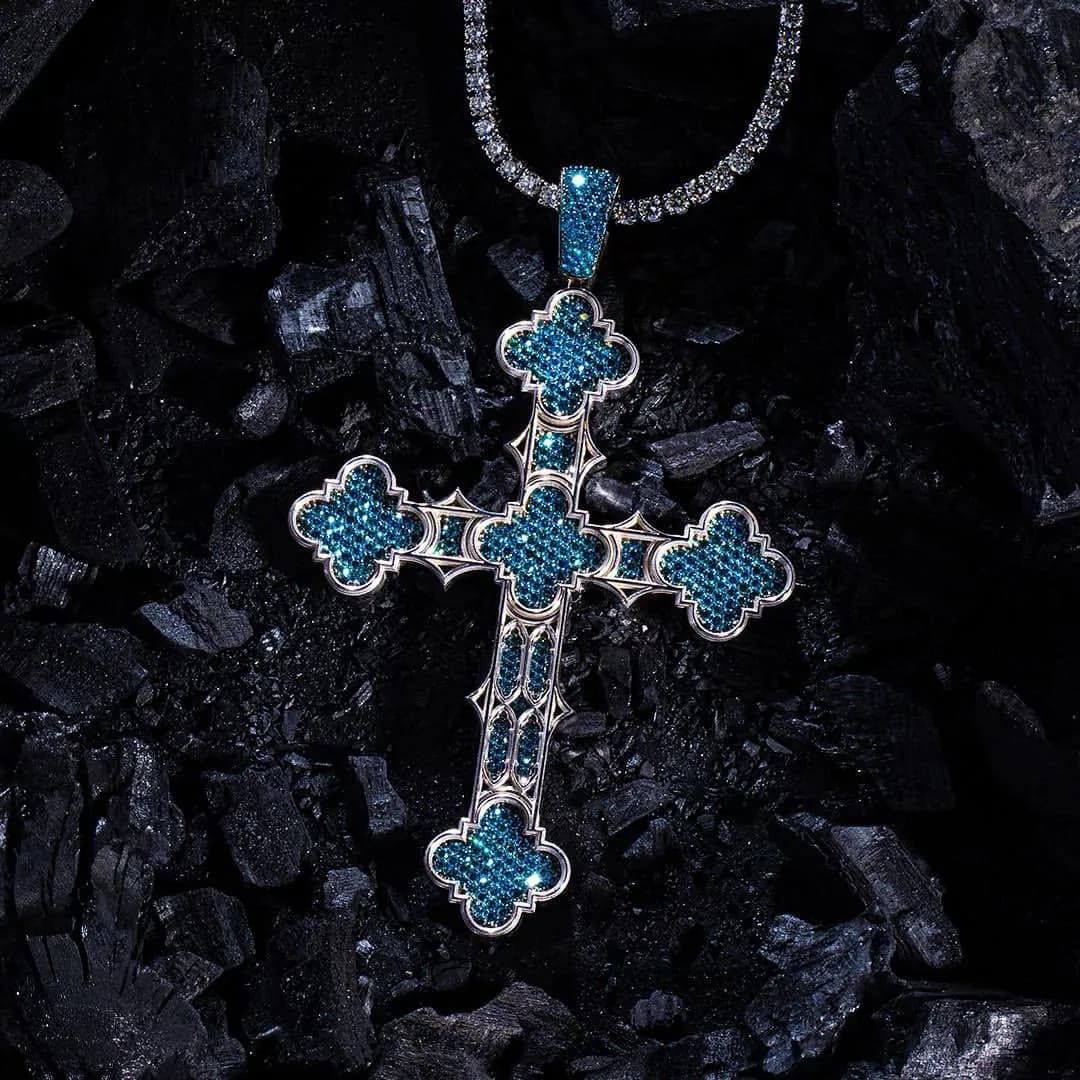
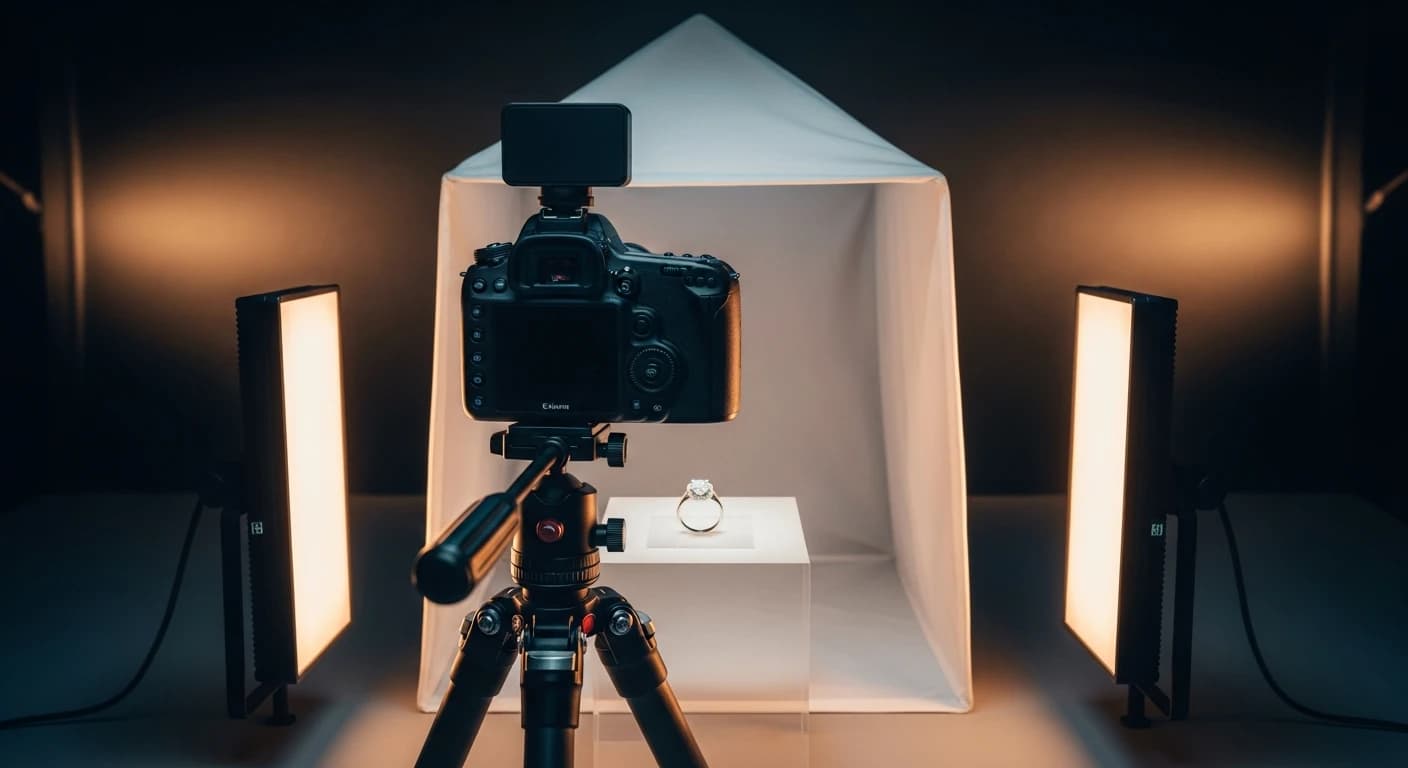
Professional product photography runs $50-$200 per piece. If you stock 500 SKUs, that's $25,000 to $100,000, and you'll need to reshoot every time inventory turns over. That's not a photography budget. That's a recurring expense with no ceiling.
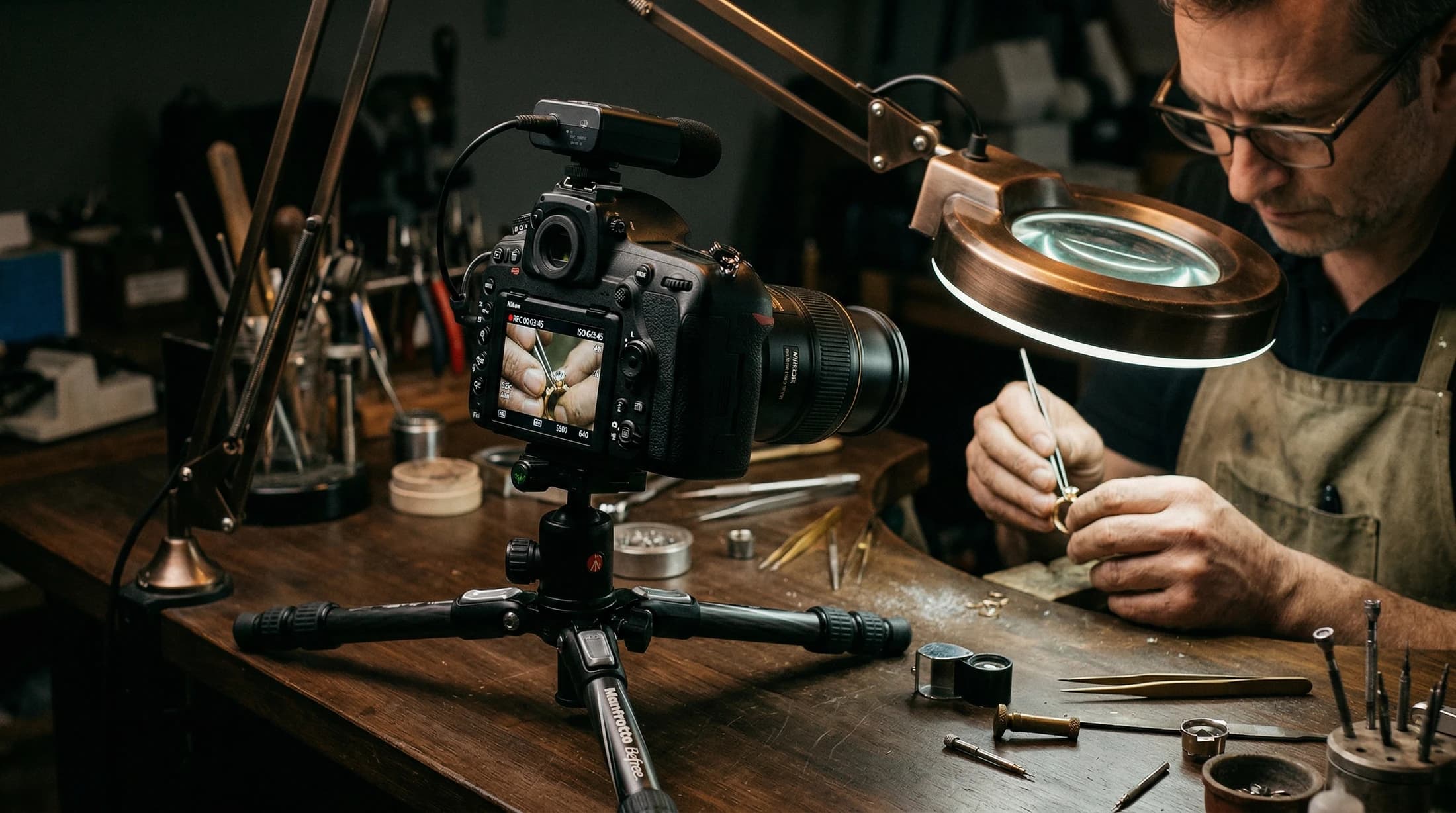
Here's the math that changes the equation: a DSLR body, a macro lens, and a basic lighting setup costs $2,000-$3,000 once. After that, every shot is essentially free. You control your schedule, your output, and your consistency. No waiting on a photographer's availability. No re-explaining your brand standards at every session.
And this matters beyond your product pages. Your product photos feed your Google Shopping listings, your Meta ad creative, your email campaigns, your Pinterest pins, and every page on your site. One bad photo fails everywhere at once. One good photo works everywhere at once.
This guide covers the equipment, technique, and workflow for retailers who need to shoot real inventory at scale. Not a single hero piece for Instagram. Hundreds of SKUs, shot consistently, optimized for every platform you sell on.
Why Your Product Photos Are Costing You Sales
This isn't an aesthetic problem. It's a revenue problem.
Nine out of ten online shoppers rank product photos as one of their top purchase factors. Products with multiple angles see 58% higher sales compared to single-image listings. And 75% of online buyers say product photography is the single biggest factor in their purchase decision.
Products with 360-degree views push those numbers further: 22% higher conversion and 35% higher add-to-cart rates.
Think about where your product photos actually live. They're in your Facebook and Instagram ads for retailers. They populate your Google Shopping feed. They fill your email campaigns. They are your social media content. Your photos aren't isolated assets sitting on a product page. They're the raw material for every marketing channel you run.
Weak source material means weak performance everywhere. A blurry ring photo doesn't just look bad on your website. It gets low click-through rates in Google Shopping. It gets scrolled past in a Meta feed. It gets ignored in an email. And if your images don't meet Google's technical requirements, your local inventory ads get rejected entirely.
The ecommerce photography market is projected to hit $275.4 million by 2030. That tells you how much money businesses are spending to outsource this. Retailers who bring photography in-house keep that margin and gain control over their content pipeline.
The Equipment You Actually Need
Camera Body ($500-$2,000)
The body matters less than the lens. An entry-level DSLR or mirrorless camera with a good macro lens will outperform a $3,000 body paired with a kit lens. If you already own any interchangeable-lens camera made in the last ten years, you're probably fine. Spend the money on the lens instead.
Entry-level ($500-$800):
- Nikon D7500, 20.9MP APS-C, ~$700 body
- Canon EOS Rebel T8i, 24.1MP APS-C, ~$600 body
- Sony a6400, 24.2MP APS-C mirrorless, ~$700 body
Mid-range ($1,200-$1,700):
- Canon EOS R8, full-frame mirrorless, ~$1,500 body
- Nikon Z5 II, full-frame mirrorless, ~$1,700 body
- Sony a6700, APS-C mirrorless, 26MP, ~$1,400 body
APS-C is a smart starting point. Full-frame is nice, gives you more dynamic range and slightly better low-light performance, but it's not necessary for jewelry product photography. Your money goes further on a good lens and lighting.
Macro Lens (The One Purchase That Matters Most)
The 100-105mm focal length is the sweet spot for jewelry. It gives you a comfortable working distance so your camera and hands aren't casting shadows on the piece, and it minimizes distortion. Always look for true 1:1 magnification at minimum.
Top picks by mount:
- Canon RF 100mm f/2.8L Macro IS USM, ~$1,200 (RF mount)
- Nikon Z MC 105mm f/2.8 VR S, ~$1,000 (Z mount)
- Sony FE 100mm f/2.8 Macro GM OSS, ~$1,500 (E mount)
Budget options:
- Sigma 105mm f/2.8 DG DN Macro Art, ~$800 (Sony/L mount)
- Nikon Z MC 50mm f/2.8, ~$500 (Z mount)
- Sony FE 50mm f/2.8 Macro, ~$450 (E mount)
Image stabilization is a bonus, not a requirement. You'll be shooting on a tripod with a remote shutter, which is the real stabilization for macro work.
Lighting Setup ($0-$500)
Three tiers, and you can produce good results at any of them.
Natural light (free). A north-facing window gives you soft, consistent light. Shoot on cloudy days for natural diffusion. Position your table 90 degrees to the window and use white foam board reflectors from a craft store ($5-$10) to fill shadows on the opposite side.
Light tent or lightbox ($20-$200). Best for consistent results with minimal learning curve. A basic pop-up light tent runs $20-$40 on Amazon. LED lightboxes with built-in lighting run $40-$100. Professional options like the Foldio sit around $100-$200. These work especially well for rings and earrings.
Studio LED panels ($100-$500). Two LED panels with softboxes cover 90% of jewelry shooting needs. Look for daylight-balanced LEDs (5000K-6500K), a CRI rating of 95 or higher, and dimming capability. A two-panel softbox kit runs $80-$150. Add individual LED panels from Godox or Aputure at $200-$500 each if you want more control.
Turnkey Solutions: GemLightbox and Alternatives
If you want a dedicated jewelry photography system, the GemLightbox by Picup Media is the most recognized option in the industry. It's a self-contained lightbox with built-in turntable, designed specifically for jewelry. You place the piece inside, shoot with your smartphone, and get consistent white-background images and 360-degree video.
Price: $900-$2,000 depending on the model and accessories.
What it does well: Consistent catalog-quality results, 360-degree video capability, works with a smartphone (no DSLR required), minimal learning curve, fast throughput for product shots.
Where it falls short: Expensive upfront. Less creative control than a manual setup. You're somewhat locked into their ecosystem. And you still can't shoot lifestyle images, social content, or hero-quality editorial inside a lightbox.
Alternatives in the market:
- Ortery and Iconasys make professional turntable/lightbox systems, typically $1,000+
- Generic photo lightboxes on Amazon run $50-$200 and work fine for basic white-background shots
Our take: The GemLightbox is a solid tool for catalog shots at scale. If you're shooting hundreds of SKUs for product pages and Google Shopping feeds, it speeds up the process significantly. But it doesn't replace a DSLR and macro lens setup. You still need that for lifestyle photography, social media content, hero images, and anything where creative control matters. Most retailers who invest in photography should own both: a lightbox for volume catalog work and a DSLR setup for everything else.
Backgrounds, Props, and the Small Stuff
Backgrounds:
- White paper sweep for product shots. Google Shopping requires a white or neutral background for primary images. A roll of seamless white backdrop paper runs $10-$30.
- White acrylic sheet ($20-$40) for a reflective surface look.
- Black velvet ($10-$20) for diamonds and gemstones. It absorbs light and makes sparkle pop.
- Marble tile, linen, or textured stone for lifestyle setups ($5-$20 each from a hardware store).
Props and tools:
- Mannequin busts for necklaces and earrings ($15-$40)
- Museum putty or wax to hold pieces upright without visible support ($5)
- Fishing line or thin wire to suspend necklaces ($3)
- White, silver, and gold reflector cards ($10-$20)
- Microfiber cloths, cotton gloves, compressed air, jewelry cleaning solution
Non-negotiable: A tripod and a remote shutter release (or use your camera's 2-second timer). Handheld macro photography is a losing proposition. At macro distances, the tiniest camera movement creates visible blur.
[IMAGE: Equipment flat-lay showing the full kit: camera body, macro lens, tripod, light tent, foam reflectors, museum putty, cleaning supplies, and remote shutter release]
Camera Settings for Jewelry
Lock these in and stop guessing.
Aperture: f/8 to f/11. This is the sharpest range for most lenses and gives you enough depth of field to keep more of the piece in focus. Wider than f/8 and you lose the back of the piece to blur. Narrower than f/16 and diffraction starts softening the image.
ISO: 100-200. Keep it as low as possible. You're on a tripod, so there's no reason to push ISO higher and introduce noise.
Shutter speed: Whatever the exposure requires. A quarter second. A full second. Two seconds. It doesn't matter when the camera is locked on a tripod and you're triggering with a remote shutter.
White balance: Manual. Set it with a gray card at the start of every session and every time you change lighting. Do not use auto white balance. It shifts between shots and destroys consistency across your product catalog.
File format: RAW. Always. RAW files give you full control over exposure, white balance, and color grading in post-production. JPEG throws away data you can't recover. The files are larger, but storage is cheap and the editing flexibility is worth it.
Focus: Manual or single-point AF. Use your camera's Live View with magnification to nail the focus on the closest detail of the piece. For rings, focus on the stone. For necklaces, focus on the pendant. For watches, focus on the dial.
Lighting Techniques That Handle Metal and Stone
Lighting is where most jewelry photos succeed or fail. Metal reflects everything around it. Gemstones need specific light qualities to show their optical properties. Getting this right takes more thought than pointing a lamp at a ring.
Continuous vs. Strobe, LEDs vs. Ring Lights
Use continuous lighting for jewelry, not strobes or flash. On-camera flash creates hot spots on metal and blows out diamonds. Studio strobes can work in the hands of an experienced photographer, but continuous LED lights let you see exactly what the final image will look like in real time. That matters when you're trying to position reflections and catch sparkle at specific angles.
LED panels vs. ring lights. LED panels are more versatile. You can position two of them at different angles, control each one independently, and add diffusion. Ring lights produce a distinctive circular catchlight in gemstones and a flat, even illumination, which works for some pieces but limits your creative control. For a general-purpose setup, two LED panels beat a ring light.
Diffusion is mandatory. Bare, undiffused light hitting metal creates hard-edged hot spots and blown-out reflections. A softbox, a diffusion panel, or even a sheet of white parchment paper between the light and the piece softens those transitions. Light tents work on this principle, wrapping the piece in diffused light from every direction.
Gold vs. Silver vs. Platinum
Different metals reflect light differently. The color temperature of your lighting needs to match.
Yellow gold: Warm lighting in the 3500K-4500K range brings out the warmth of the metal. White backgrounds work well. Yellow gold is forgiving to photograph.
White gold and platinum: Cool lighting, 5000K-6500K. These metals need to look crisp and white, not yellowish. Warm lighting makes white gold look dingy and cheap. Keep the color temperature neutral to cool.
Rose gold: Neutral to slightly warm. Go too cool and you kill the pink tone that makes rose gold desirable. Go too warm and it looks like yellow gold. A slight warmth, around 4500K-5000K, usually hits the mark.
Sterling silver: The hardest metal to photograph. Silver is a mirror. It reflects everything around it, your camera, your hands, the ceiling, the table edge. A light tent is almost mandatory. And counterintuitively, white backgrounds make silver look dull and washed out. Gray or black backgrounds show silver's luster far better.
Mixed metals: When a piece combines gold and silver or platinum, neutral daylight at 5000K is the safest compromise.
For every setup change, re-shoot a gray card for white balance calibration. A polarizing filter reduces harsh reflections on any metal and is worth keeping on the lens for all metal photography.
Making Diamonds and Gemstones Pop
Diamonds have three optical properties, and each one requires a different lighting approach.
Brilliance is the return of white light. To capture it, place a bright LED at roughly 45 degrees to the stone. This produces strong, clean white reflections inside the diamond.
Fire is the spectral color dispersion, the rainbow flashes. Fire shows up with hard, direct light from a small source. A bare LED without diffusion, positioned to create contrast, brings out fire. This is the one time you actually want harder light.
Scintillation is the sparkle pattern, the flicker between light and dark areas as the diamond moves (or as the viewing angle changes). Scintillation needs contrast. If the lighting is too even and wrapping, the diamond looks flat. You need some dark areas reflected in the stone to create that contrast.
For diamonds, keep your color temperature cool, 5000K-6500K. Black backgrounds make sparkle pop dramatically more than white. And use continuous light so you can see the effect in real time as you adjust angles. Flash gives you no preview of where the fire and brilliance will land.
Colored gemstones add another variable. Match your white balance carefully to reproduce true color. Some LED lights have a narrow spectrum that can distort certain gem colors, making rubies look orangish or sapphires look purple. Full-spectrum LEDs with a CRI of 95+ minimize this problem.
[IMAGE: Side-by-side comparison of a diamond on white background vs. black background, showing the difference in visible sparkle and fire]
How to Shoot Each Type of Jewelry
Rings
Shoot at a slight angle, roughly 10-15 degrees, to show both the band profile and the stone face. Use museum putty or wax to hold the ring upright without visible support.
Engagement rings and cocktail rings with prominent stones need focus stacking (covered in the next section). At macro distances, the front of the stone will be sharp while the back of the band is blurry, even at f/11.
Capture at minimum: top-down, 3/4 view, and side profile. Avoid reflections inside the band by surrounding the ring with white cards or shooting inside a light tent.
Necklaces and Pendants
Drape the chain in a natural curve on a flat surface for flat-lay shots, or use a mannequin bust for a more dimensional look. Fishing line or thin wire creates a floating effect for editorial images.
For pendant necklaces, the pendant is the star. Focus on the pendant detail and let the chain provide context. Use museum putty to set the curve of the chain so it doesn't shift between shots.
Shoot the full length, a pendant close-up, and a clasp detail.
Watches
Dial reflections are the biggest challenge. A polarizing filter and carefully angled lighting reduce reflections on the crystal. Set the time to 10:10, the industry convention that frames the logo and creates a visually balanced dial.
Capture the dial face, case profile, caseback, strap or bracelet detail, and the crown. For watches with luminous markers, a long exposure in a dark room reveals the lume color and distribution, which watch buyers care about.
If you're an authorized dealer, check your brand compliance guidelines. Many watch brands have specific requirements for how their products can be displayed and photographed.
Earrings and Bracelets
Earrings: Shoot in pairs for product shots, single earrings for editorial or detail shots. Use a mannequin ear display or hang them from thin wire. Show drop and dangle length clearly. For studs, shoot at a slight angle to convey dimension.
Bracelets: Drape around a cylindrical form (rolled paper, a bracelet holder) for product shots. Wrist shots on a model provide scale and styling context. Arrange chain bracelets in a controlled curve. For bangles, show the clasp mechanism in at least one angle.
[IMAGE: Example product shots for each jewelry type showing proper angle and framing: ring at 3/4 view, necklace flat lay, watch at dial angle, earring pair]
Focus Stacking: The Technique Most Retailers Skip
At macro distances, depth of field is razor-thin. Even at f/11, the front of a ring can be tack sharp while the back of the band melts into blur. That's physics, not a camera deficiency. The closer you focus, the shallower your depth of field becomes, regardless of aperture.
Focus stacking solves this. You take multiple photos of the same piece, each focused at a slightly different distance, and software merges them into one image where everything is sharp from front to back.
How It Works
Lock your camera on a tripod. This is non-negotiable. Any movement between frames ruins the stack. Use a remote shutter or timer for each shot.
Start with focus on the closest point of the piece, the front of a gemstone, for example. Take a shot. Then shift focus slightly deeper, either by turning the manual focus ring in tiny increments or using a focus rail. Take another shot. Repeat until you've covered the full depth of the piece, from the closest point to the farthest.
For a typical ring, you'll need 10-30 shots depending on how close you're shooting and how much depth the piece has. A flat bangle might need five frames. An engagement ring with a tall setting might need twenty or more.
Software for Stacking
Adobe Photoshop has built-in focus stacking. Load the images as layers, auto-align them (Edit > Auto-Align Layers), then auto-blend (Edit > Auto-Blend Layers, select "Stack Images"). It works well for straightforward stacks.
Helicon Focus ($115-$240, one-time lifetime license) is dedicated focus stacking software. It handles complex stacks better than Photoshop, offers multiple blending algorithms, and processes faster. If you're doing this regularly, it's worth the investment.
Zerene Stacker is another dedicated option, popular with macro photographers. It handles edge artifacts and halo effects better than most general-purpose tools.
Camera Features That Help
Some cameras have built-in focus bracketing that automates the capture process. Nikon Z-series cameras (Z5 II, Z6 III, Z7 II) have a focus shift shooting mode that takes the set of images automatically. Sony A7R series offers a similar feature. The camera shifts focus incrementally and fires the shutter for each frame, so all you do is set the start point, end point, and number of frames.
When to Use It and When to Skip It
Use focus stacking for engagement rings, cocktail rings, any piece with significant front-to-back depth, and any close-up where full sharpness matters to the buyer's decision.
Skip it for flat pieces. A chain laid flat, a bangle shot from directly above, a flat pendant. If the entire piece sits in one plane of focus, stacking adds time with no benefit.
[IMAGE: Before/after comparison of a ring: left side shows partially blurry image without focus stacking, right side shows fully sharp result with focus stacking applied]
Shooting for Every Platform at Once
You don't shoot for your website, then reshoot for Google Shopping, then reshoot for Instagram. You shoot once, at the highest resolution your camera allows, and export sized versions for each platform.
During each session, shoot on white for product pages and shopping feeds, and capture a few lifestyle setups for social and editorial. Two types of content from one sitting.
Platform Specs Table
[TABLE: Platform | Size | Ratio | Format | Notes]
[IMAGE: Visual infographic version of the platform specs table]
Google Shopping Specifics
Google Shopping deserves extra attention because image issues are the most common reason for product disapprovals.
You can upload up to 12 images per product: one primary, ten additional angles, and one lifestyle image. Products with multiple angles see 58% higher sales compared to single-image listings.
The most common rejection reason? Promotional text or overlays on the image. No watermarks, no "SALE" banners, no brand logos layered on top. Clean product image only.
When you update images in your feed, change the image URL too. If you keep the same URL, Google's re-crawl can take up to six weeks to pick up the new image. New URL forces a fresh fetch.
If you're using any AI-generated or AI-edited images, include IPTC DigitalSourceType metadata, Google now requires this disclosure.
For more on getting your products visible in Shopping results, read our guide to local inventory ads for jewelers.
Social and Visual Search
Platform-specific sizing is table stakes for your social media strategy for retailers. Properly sized images get better reach, better engagement, and better ad performance.
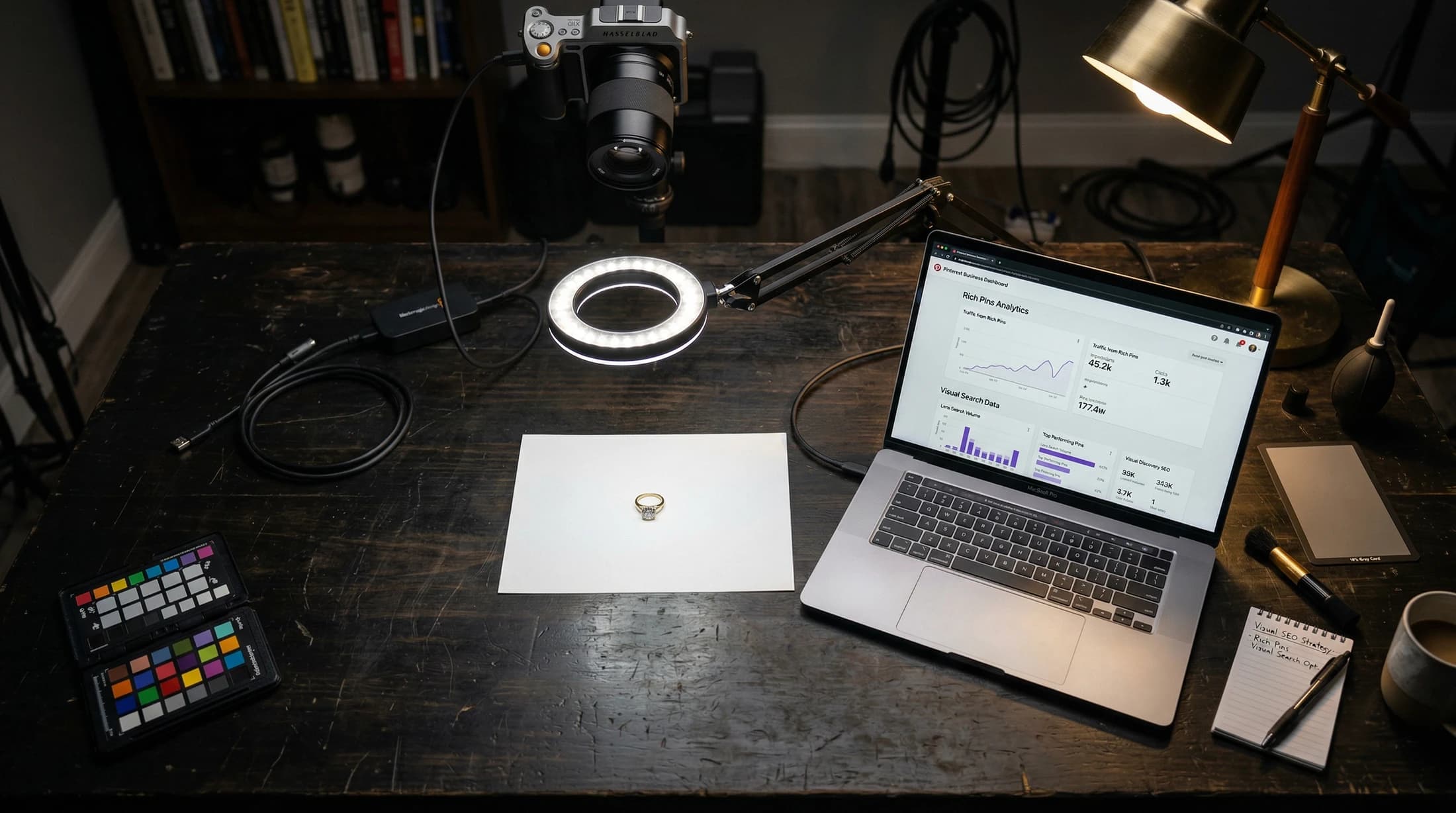
Your product photos also feed visual search for jewelry. Google Lens and Pinterest Lens match user-uploaded images against product photos. The cleaner and more detailed your photography, the more likely your products surface in visual search results.
White Background Images for Catalog and Product Ads
White backgrounds aren't a stylistic choice. They're a technical requirement.
Google Shopping requires a white or light-colored background for primary product images. If your main image has a lifestyle background, textured surface, or colored backdrop, it gets disapproved. Same story for most product feed aggregators, comparison shopping engines, and marketplace listings. White background is the universal standard for any context where a customer is comparing products side by side.
How to Get a Clean White Background
Shooting surface: White seamless paper or white acrylic. Seamless paper ($10-$30 per roll) gives you a matte finish with no reflections. White acrylic ($20-$40) gives you a subtle reflection underneath the piece, which works well for rings and watches. Either one works. Pick based on whether you want that reflection or not.
Lighting to eliminate shadows: Position two LED panels at 45-degree angles on either side, both with diffusion. Add a third light or a white reflector card below and behind the piece to fill any remaining shadows. The goal is even illumination with no harsh shadow edges on the background. If you're using a light tent, this is largely handled for you.
Post-processing cleanup: Even a well-lit white background rarely comes out as pure white straight from the camera. In Lightroom, use the whites slider and the tone curve to push the background to true white (RGB 255, 255, 255) without blowing out the product. In Photoshop, a levels adjustment with the white point eyedropper on the background gets you there fast. For product feed images where the piece needs to float on pure white, create a clipping path around the piece with the pen tool and drop it onto a white layer.
White vs. Lifestyle: When to Use Each
White backgrounds go on your product detail pages, Google Shopping feed, comparison shopping ads, catalog layouts, and any platform where the product needs to stand alone. Lifestyle shots go on social media, email hero images, homepage banners, and editorial content. You need both. Shoot both in the same session.
Batch Workflow for White Background Shoots
When you're shooting 50+ SKUs for your catalog or product feed, efficiency matters. Lock down your white background setup once: same lighting positions, same camera settings, same distance. Place piece, shoot 3-5 angles, swap. Apply the same Lightroom white balance and levels preset across the entire batch. Export at 1500x1500 for Google Shopping and 2000x2000 for your PDP. A well-organized session gets you through 50 pieces in under three hours.
AI-Generated Model Shots
Here's where things get interesting. You have a white-background product photo of a pair of earrings. Clean shot, well lit, professional. But your product page would convert better with an on-model image, and your social content needs lifestyle shots that stop the scroll.
A model shoot costs $2,000-$5,000 per session when you factor in the model, makeup artist, hair stylist, and studio time. For a retailer with 500 SKUs, that math doesn't work. AI changes the equation entirely.
The Concept
Take your product-only photo, the white-background shot you already have, and use AI tools to generate a realistic image of a model wearing the piece. No model booking. No makeup artist. No studio rental. The AI generates the model, the skin texture, the lighting on the face, everything except the jewelry itself.
Tools That Do This
Midjourney produces strong editorial-quality results when you feed it a product reference image and describe the model shot you want. Adobe Firefly integrates directly into Photoshop's generative fill workflow, which makes compositing smoother. Stable Diffusion with inpainting gives you the most control if you're comfortable with the technical setup. There are also dedicated jewelry AI tools emerging in the market that are purpose-built for this exact workflow.
The Workflow
- Shoot the piece on a white background (you're already doing this for your catalog).
- Remove the background to isolate the piece.
- Use AI to generate a model image with the piece positioned naturally, earrings on ears, necklace on neck, ring on hand.
- Touch up in Photoshop. Check that shadows fall correctly, reflections on the metal match the lighting on the model, and the piece sits naturally against skin.
What Works and What Doesn't
Earrings and necklaces produce the best results. The AI handles the relationship between jewelry and skin well at the ear and neckline. Bracelets work reasonably well. Rings are harder. The AI often struggles with finger anatomy and the way a ring sits between knuckles, so expect more touch-up time on ring shots.
Check every image for realistic shadows and reflections. If the model's lighting comes from the left but the jewelry highlights come from the right, it looks wrong immediately, even to someone who can't articulate why.
The Business Case
No model fees. No makeup artist. No studio rental for the model shoot portion. Infinite diversity in models, so you can match your target demographic exactly. Need to show the same necklace on different skin tones for different ad sets? Generate five versions in an afternoon instead of booking five separate shoots.
We've done this for clients at H&CO, and you can see examples of AI-generated model shots throughout this post. The technology has reached a point where the output is publication-ready for digital channels.
[IMAGE: Side-by-side comparison — original product photo on white background vs. the same piece on an AI-generated model]
[IMAGE: AI-generated model wearing earrings — example of what's achievable with current tools]
One Rule: Disclose It
If you're using AI-generated or AI-edited imagery, disclose it. Google requires IPTC DigitalSourceType metadata on AI-generated images in Shopping feeds. Beyond compliance, transparency builds trust. Your customers will respect the honesty far more than they'll penalize you for using AI.
The Batch Workflow for Shooting 50+ Pieces
The goal is setup once, swap pieces, maintain consistency. Here's the workflow that lets you photograph 50 pieces in a single session.
Step 1: Lock down the setup. Position your lighting, background, camera, and tripod. Set your camera settings (f/8-f/11, ISO 100, manual white balance). Once everything is dialed, don't touch it.
Step 2: Shoot a gray card. This gives you a white balance reference for the entire batch during editing.
Step 3: Photograph piece #1. Shoot 3-5 angles on the white background. Capture one lifestyle setup if applicable. Record a 15-second video clip.
Step 4: Swap the piece. Do not move the lights. Do not move the camera. Place the next piece in position. Repeat.
Step 5: File naming. Use SKU-based naming from the start. `SKU12345-01.ARW`, `SKU12345-02.ARW`, and so on. This saves hours of sorting later and connects directly to your inventory system.
Step 6: Batch edit in Lightroom. Develop the first image in each batch, set white balance, exposure, sharpening, and crop. Then sync those settings across every image in the session.
Step 7: Export presets. Set up three export presets and use them every time:
- Web/PDP: WebP, 2000px longest edge
- Google Shopping: JPEG, 1500x1500px
- Social: JPEG, 1080px
Estimated pace: 2-3 minutes per piece once the setup is locked. Fifty pieces in a single session takes 2.5-3 hours. Run a monthly shoot for new arrivals and you'll never fall behind on content.
One photo session, properly run, generates content for every channel. For more on maximizing output from a single shoot, see turning one session into 30 pieces of content.
[IMAGE: Workflow diagram showing the setup > shoot > swap > edit > export pipeline]
Need help building a content system that turns your product photos into ads, social posts, and email campaigns? That's what we do. [Talk to H&CO](/contact)
Editing and Post-Production
Software Options
Adobe Lightroom + Photoshop ($10/month Photography plan): This is the standard for batch workflow. Lightroom handles RAW processing, batch editing, preset syncing, and export. Photoshop handles focus stacking, advanced retouching, background removal, and clipping paths. Together they cover everything.
Free alternatives: GIMP for full-featured editing (steep learning curve but capable). Darktable for RAW processing and batch workflow. Snapseed on mobile for quick adjustments on the go.
Helicon Focus ($115-$240, lifetime license): If you're doing regular focus stacking, this dedicated tool handles it better and faster than Photoshop.
The Editing Checklist
Work through this for every batch:
- White balance correction. Match to your gray card reference shot.
- Exposure adjustment. Even out any variation between shots.
- Background cleanup. Remove dust spots, stray fibers, any imperfections on the sweep.
- Sharpening. Apply carefully. Over-sharpening creates artifacts on metal surfaces, halos along edges, and a crunchy texture that looks wrong.
- Crop to consistent framing. Every product should sit in the same position and scale within the frame. This matters for your product grid.
- Do not over-saturate. Gold should look like gold, not orange. Diamonds should look real, not CGI. Subtle adjustments preserve the piece's actual appearance, which is what the customer needs to trust before buying.
Export: WebP at 80-85% quality for web, JPEG fallback for older browsers.
Background Removal and Clipping Paths
Pure white cutout images are standard for product feeds, catalog pages, and any context where the piece needs to float on a clean background.
Photoshop's Select Subject AI has gotten remarkably accurate for jewelry. The pen tool still gives you the cleanest edges, especially around chains and prongs. For high-volume work, batch background removal tools exist, but always quality-check the output. Automated tools struggle with fine details like chain links and prong tips.
Image Optimization for Page Speed
Uncompressed product photos can destroy your mobile load times. And your customers are on mobile. Google's data is clear: when page load goes from 1 second to 3 seconds, bounce probability increases by 32%. From 1 to 5 seconds, it increases by 90%.
WebP delivers 25-35% smaller file sizes than JPEG at equivalent visual quality. AVIF pushes that further, 20-30% smaller than WebP, with 93-95% browser support as of 2026.
Rules for your image pipeline:
- Never upload full-resolution TIFFs or uncompressed files directly to your CMS.
- WebP at 80-85% quality for web display. JPEG as a fallback for the small percentage of browsers that don't support WebP.
- Serve different sizes for different contexts using responsive image markup (srcset). Your CMS or CDN should auto-generate sizes.
- PNG is for graphics and logos, not photographs. A 50MB PNG product photo is a performance disaster.
- For email, keep images under 200KB.
For a deeper look at how load times affect your bottom line, read why slow load times cost five-figure sales.
Adding Video to Your Photo Session
You already have the tripod set up. The lighting is dialed. The piece is in position. Before you swap to the next item, capture 15-30 seconds of video. The incremental effort is close to zero, and the content value is significant.
Turntable video. A motorized turntable ($30-$60) provides continuous 360-degree rotation. Place the piece on the turntable, hit record, let it complete one full rotation. Products with 360-degree views see 22% higher conversion and 35% higher add-to-cart. Sixty-three percent of shoppers prefer 360-degree product views before purchasing.
Macro video. Slow, close-up movement across the details: the brand stamp, gemstone facets, a clasp mechanism. This gives buyers the inspection experience they'd have in-store.
Short-form clips. Five to ten second clips of light catching a diamond, a watch crown being pulled, a bracelet clasping shut. These feed Reels, TikTok, and Stories directly.
Behind-the-scenes. The shoot itself is content. Process footage performs well on social because it's authentic and shows the care behind your operation.
Video on product pages alongside stills increases dwell time and reduces returns. For techniques on shooting process and making-of content, see our post on macro video secrets for jewelry.
When a Smartphone Is Enough (And When It Isn't)
Modern flagship phones have surprisingly capable macro modes. The iPhone 15 Pro and 16 Pro activate macro mode through the ultra-wide lens with a 2cm minimum focus distance. ProRAW gives you editing flexibility similar to a DSLR's RAW files. Samsung's Galaxy S24 Ultra and Google's Pixel 9 Pro offer their own macro modes with strong computational photography.
Smartphones work for: Social media content shot on the fly. Behind-the-scenes clips. Quick new-arrival posts. Informal content where immediacy matters more than pixel-level perfection.
Smartphones don't work for: Hero PDP images. Google Shopping primary photos. Anything a customer will pinch-to-zoom on. Print collateral. Any image that needs to hold up at full resolution.
The limitations are physical. A smaller sensor means more noise in low light. You get less control over depth of field. There's no true optical macro zoom for precise compositions.
Bottom line: use a phone for social content captured on the fly. Use the DSLR and macro lens for anything that drives a purchase decision.
Common Mistakes That Tank Your Product Photos
1. Using on-camera flash. Flash creates hot spots on metal, harsh shadows, and kills gemstone sparkle. Switch to continuous LED lighting.
2. Shooting under store lights. Fluorescent and incandescent lights produce the wrong color temperature. Green casts, yellow casts, inconsistency between shots. Set up a dedicated photo station with controlled lighting.
3. Cluttered or inconsistent backgrounds. Papers, other jewelry, desk items creeping into frame. Inconsistent backgrounds across your product line kill brand cohesion. Standardize with a white sweep for every product shot.
4. Kit lens instead of macro. You can't get close enough, and you lose the detail buyers need. A macro lens is the single most impactful equipment upgrade.
5. Auto white balance. It shifts between shots. Two rings photographed five minutes apart end up with different color temperatures. Set manual white balance with a gray card and lock it.
6. Shooting JPEG instead of RAW. JPEG compresses and discards data you can never recover. Always shoot RAW and convert in post-production.
7. Over-editing. Nuclear saturation, fake-looking diamonds, skin-smoothing filters applied to metal. Buyers want to see the actual piece. Preserve realism.
8. Only shooting one angle. One front-facing shot is not enough. Minimum three to five angles per piece: top-down, 3/4 view, side profile, detail close-up, and on-model if possible.
9. Uploading full-resolution files to your site. A 50MB TIFF on your product page tanks your page speed and your conversion rate. Compress and resize for web delivery.
10. Only shooting on white. White-background product shots cover your PDP and Shopping feed, but they don't work for social, email headers, or editorial content. Capture lifestyle setups in the same session.
For more on optimizing your images for search visibility, see visual SEO for your jewelry portfolio. And to build a system that puts every photo to work, read our guide to content strategy for luxury retailers.
Your Photography Checklist (Quick Reference)
- [ ] Equipment ready: DSLR or mirrorless body, macro lens (100-105mm), tripod, remote shutter release
- [ ] Lighting set: Two LED panels with softboxes (or light tent), foam reflectors, diffusion material
- [ ] Background prepped: White sweep for product shots, lifestyle surface (marble, linen, velvet) for editorial
- [ ] Camera settings locked: f/8-f/11, ISO 100-200, manual white balance via gray card, RAW format
- [ ] Per piece: 3-5 angles on white, 1 lifestyle shot, 15-second video clip
- [ ] Focus stacking: Applied to rings and pieces with front-to-back depth (10-30 frames per piece)
- [ ] File naming: SKU-based (`SKU12345-01.ARW`)
- [ ] Post-production: Batch edit in Lightroom, sync develop settings, export with presets
- [ ] Export presets configured: WebP at 2000px (web), JPEG at 1500px (Shopping), JPEG at 1080px (social)
- [ ] Optimization: WebP at 80-85% quality, responsive sizes served, email images under 200KB
Build a Photography Workflow That Feeds Every Channel
You have the equipment list, the technique, and the workflow. The next step is connecting your photo output to the rest of your marketing: ad campaigns, product feeds, social content calendars, email sequences.
That's where most retailers stall. They shoot well but distribute poorly. The photos sit in a folder. The Google Shopping feed runs old images. Social gets whatever someone grabs from the website. Email uses whatever's handy.
H&CO builds content systems for luxury jewelry and watch retailers that turn a single photo session into weeks of marketing material across every channel. The photography is the foundation. The system that distributes it is what generates return.
If you want a team that understands both the creative and the commerce side, let's talk.
[Talk to H&CO](/contact)